



Description
Download NumLocker – Free, Secure Tool to Disable Caps, Num & Scroll Lock Keys on Windows, Mac, Android, iOS
Why You Need NumLocker: A Smart Solution for Accidental Key Presses
Accidentally pressing the Caps Lock key while typing can lead to embarrassing typos, especially in emails, documents, or online forms. Whether you're writing a professional message, entering a password, or drafting a creative piece, a single unintended capital letter can disrupt your flow and cause confusion. That’s where NumLocker comes in—a simple yet powerful tool designed to help you maintain control over your keyboard inputs. This free software allows you to disable the Caps Lock, Num Lock, and Scroll Lock keys on demand, preventing those frustrating moments when your keyboard behaves unexpectedly.
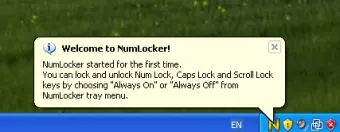
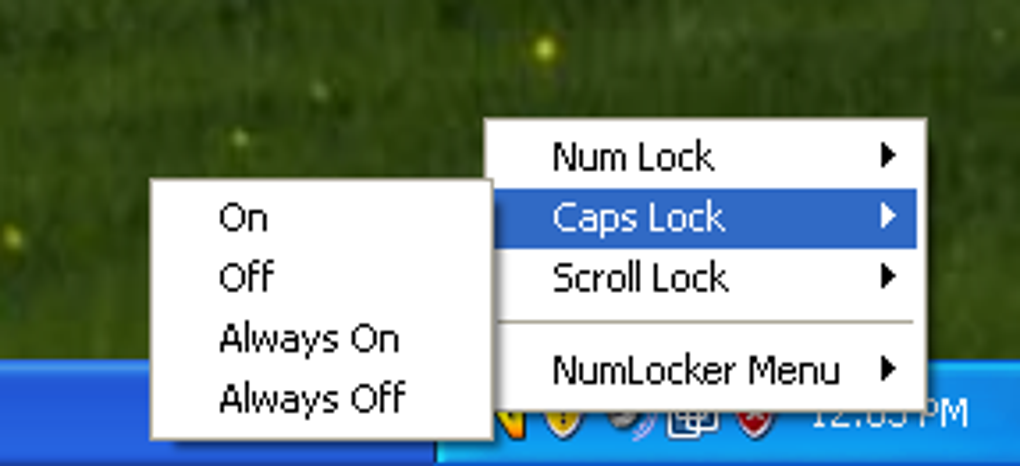
NumLocker is ideal for users who frequently hit these lock keys by accident. It runs quietly in the background, minimizing system resource usage while providing instant protection. The program operates via a small system tray icon, offering quick access through a right-click menu. There’s no complex interface to navigate—just straightforward functionality tailored for users who value efficiency and simplicity. Whether you're a student, professional, or casual computer user, NumLocker helps you avoid the common pitfalls of keyboard missteps.
One of the standout features of NumLocker is its ability to toggle the lock keys on and off with a single click. If you need to use Caps Lock temporarily, you can re-enable it instantly without restarting the program or changing system settings. This flexibility ensures that you retain full control over your keyboard while still enjoying the peace of mind that comes with preventing accidental activation. With regular updates and a secure download process, NumLocker remains a reliable choice for anyone looking to improve typing accuracy and reduce keyboard-related errors.
Key Features of NumLocker: What Makes It Stand Out
NumLocker may be small in size, but it packs a punch in functionality. Designed with user convenience in mind, this software delivers essential features that address real-world typing challenges. Here’s what sets NumLocker apart from other keyboard management tools:
- Disable Caps Lock, Num Lock, and Scroll Lock – Prevent accidental activation of these keys with one-click control.
- Minimal System Impact – Runs efficiently in the background with negligible CPU and memory usage.
- System Tray Integration – Accessible via a small icon in the system tray for quick toggling.
- Instant On/Off Toggle – Re-enable lock keys with a single click when needed.
- Multi-Platform Support – Available for Windows, Mac, Android, and iOS devices.
- Free to Download and Use – No hidden fees or subscription models.
- Regular Updates – Ensures compatibility with new operating systems and security improvements.
What makes NumLocker truly exceptional is its focus on simplicity. Unlike complex keyboard remapping tools, it doesn’t overload users with unnecessary settings or configurations. Instead, it zeroes in on the core issue: accidental key presses. This laser-focused approach makes it easy to install, use, and trust. Whether you're working on a tight deadline or just want to avoid typos, NumLocker provides a reliable safety net.
Another major advantage is its cross-platform availability. Whether you're using a desktop, laptop, tablet, or smartphone, you can download NumLocker and enjoy consistent protection across devices. This is especially useful for users who switch between platforms throughout the day. The software is also compatible with both modern and legacy systems, ensuring broad accessibility. With its clean design and reliable performance, NumLocker stands out as one of the most effective tools for keyboard hygiene.
How to Install and Use NumLocker on Windows, Mac, Android, and iOS
Getting started with NumLocker is incredibly straightforward, regardless of your operating system. The installation process is quick, secure, and requires no technical expertise. Here’s a step-by-step guide to help you set up and use the software on your preferred device:
For Windows Users:
- Visit the official NumLocker download page.
- Click the “Download” button to get the latest version.
- Run the installer file and follow the on-screen instructions.
- Once installed, the program will launch automatically and appear in your system tray.
- Right-click the icon to access the menu and disable the desired lock keys.
For Mac Users:
- Download the Mac-compatible version from the official site.
- Open the .dmg file and drag the NumLocker app into your Applications folder.
- Launch the app from your Applications folder.
- It will run in the background and show an icon in the menu bar.
- Right-click the icon to toggle Caps, Num, or Scroll Lock off.
For Android and iOS:
- Open the Google Play Store or Apple App Store.
- Search for “NumLocker” and select the official app.
- Tap “Install” and wait for the download to complete.
- Open the app and grant necessary permissions.
- Use the in-app toggle to disable the lock keys on your device’s virtual keyboard.
Once set up, NumLocker requires no ongoing maintenance. It runs silently in the background, and you can manage it anytime through the system tray or menu bar icon. The intuitive design ensures that even first-time users can navigate it with ease. With regular updates, the software stays compatible with new OS versions and security patches, ensuring long-term reliability.
Pros and Cons: Is NumLocker Right for You?
Before downloading any software, it’s essential to weigh its advantages and limitations. Here’s a balanced look at what makes NumLocker a strong choice—and where it might fall short.
Pros:
- Lightweight and fast—uses minimal system resources.
- Free to download and use with no ads or in-app purchases.
- Simple, intuitive interface with no learning curve.
- Available for Windows, Mac, Android, and iOS—true cross-platform support.
- Instant toggling of lock keys with one click.
- Secure download with regular updates for safety.
Cons:
- No visual feedback for lock status (though third-party tools like NumCapsScroll Indicator can help).
- Only disables lock keys—does not remap or customize them.
- Not ideal for users who rely heavily on Num Lock for data entry.
Overall, NumLocker excels in solving a specific problem: accidental key presses. If you frequently find yourself typing in all caps or triggering scroll lock unintentionally, this tool is a game-changer. However, if you need advanced keyboard customization, you may want to explore other software.
Frequently Asked Questions (FAQ)
Here are answers to some of the most common questions about NumLocker:
-
Is NumLocker free to download and use?
Yes, NumLocker is completely free to download and use. There are no hidden fees, subscription models, or in-app purchases. You can enjoy all core features at no cost.
-
Does NumLocker work on both Windows and Mac?
Absolutely. NumLocker is available for both Windows and Mac operating systems, ensuring compatibility across desktop platforms.
-
Can I re-enable Caps Lock after disabling it with NumLocker?
Yes, you can re-enable Caps Lock, Num Lock, and Scroll Lock with a single click through the system tray or menu bar icon. The toggle is instant and reversible.
-
Is NumLocker safe to install on my device?
Yes, NumLocker is a secure application developed by a trusted team. It undergoes regular updates to ensure safety and compatibility with the latest operating systems.
-
Does NumLocker work on mobile devices?
Yes, NumLocker is available for both Android and iOS devices, allowing you to disable lock keys on your smartphone or tablet’s virtual keyboard.
Final Verdict: A Must-Have Tool for Typing Accuracy
If you’re tired of typing in all caps by accident or struggling with unexpected scroll behavior, NumLocker is the solution you’ve been looking for. This lightweight, secure, and free software offers a simple yet effective way to disable Caps Lock, Num Lock, and Scroll Lock keys when they’re not needed. With support for Windows, Mac, Android, and iOS, it’s perfect for users who value consistency across devices.
While it may not offer advanced customization, its core purpose is executed flawlessly. The installation is quick, the interface is intuitive, and the performance is reliable. Whether you're writing a report, sending an email, or entering data, NumLocker helps you maintain precision and professionalism.
Don’t let accidental key presses ruin your workflow. Download NumLocker today and take control of your keyboard with confidence.
Guides & Tutorials for NumLocker
How to install NumLocker
- Click the Preview / Download button above.
- Once redirected, accept the terms and click Install.
- Wait for the NumLocker download to finish on your device.
How to use NumLocker
This software is primarily used for its core features described above. Open the app after installation to explore its capabilities.
User Reviews for NumLocker 0
No reviews found





